End-to-end demo of the Approval Not Required (Form A) process —
from public submission to Planning Board endorsement.
May 2026 · Lands End Technology
Step 1
Applicant submits
Public web form
→
Auto
Payment request
Email to applicant
→
Auto
Clerk intake
Email to Town Clerk
→
Auto
On Agenda
Both done → advance
→
Manual
Endorse
After board vote
Public Portal
The public-facing portal — maplanningsoftware.com
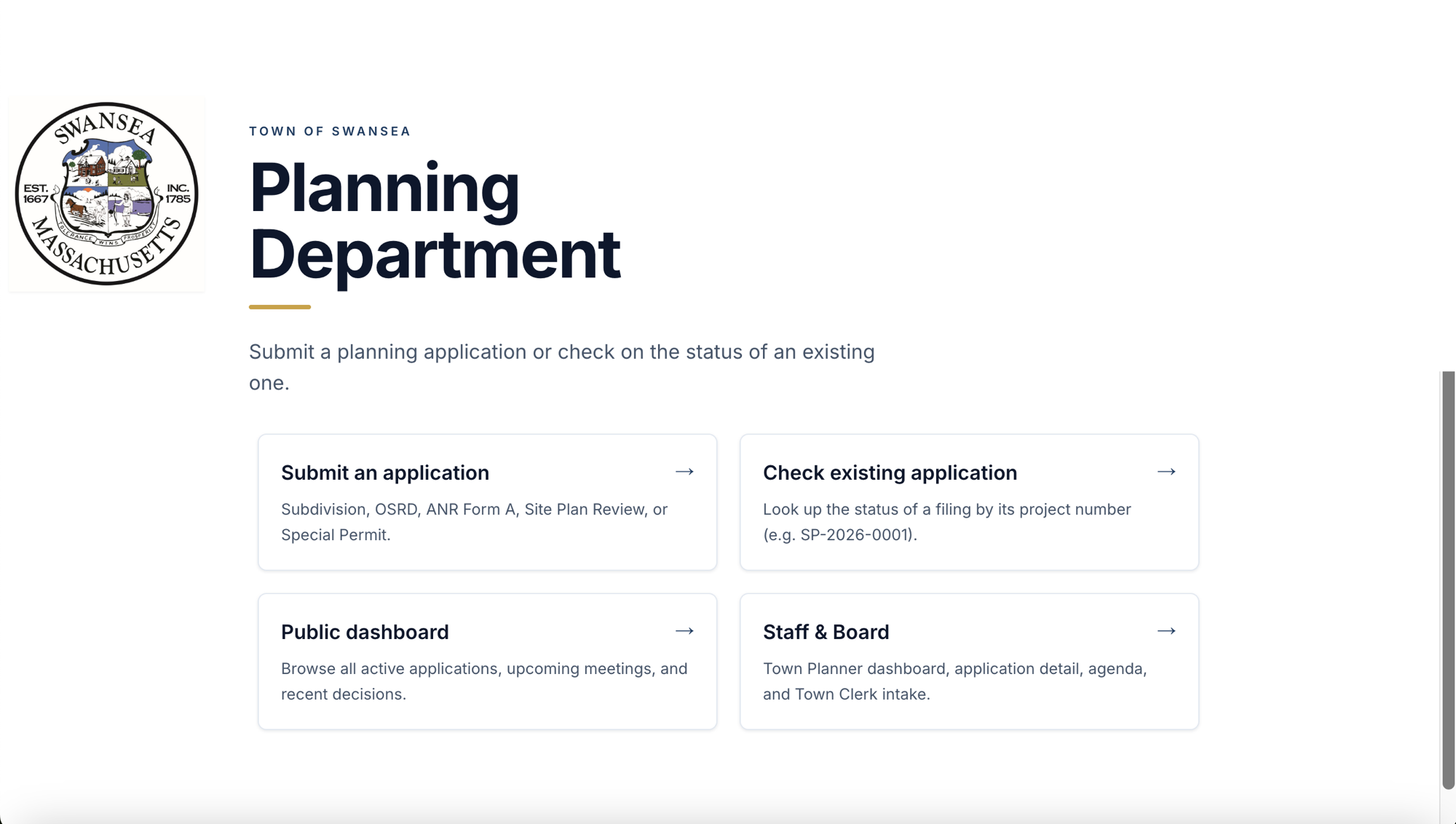
Residents and engineers access the system at maplanningsoftware.com.
The homepage provides four clear entry points: submit an application, check an existing application's status,
browse the public dashboard, or access the staff & board portal.
maplanningsoftware.com
🏛️
Official town branding
Town of Swansea seal and Planning Department identity — consistent with official communications.
📲
Works on any device
Fully responsive — applicants can submit from a phone, tablet, or desktop browser.
🔍
Public status lookup
"Check existing application" lets anyone look up a filing by project number — no login needed.
Public Record
Public dashboard — all filings visible to anyone
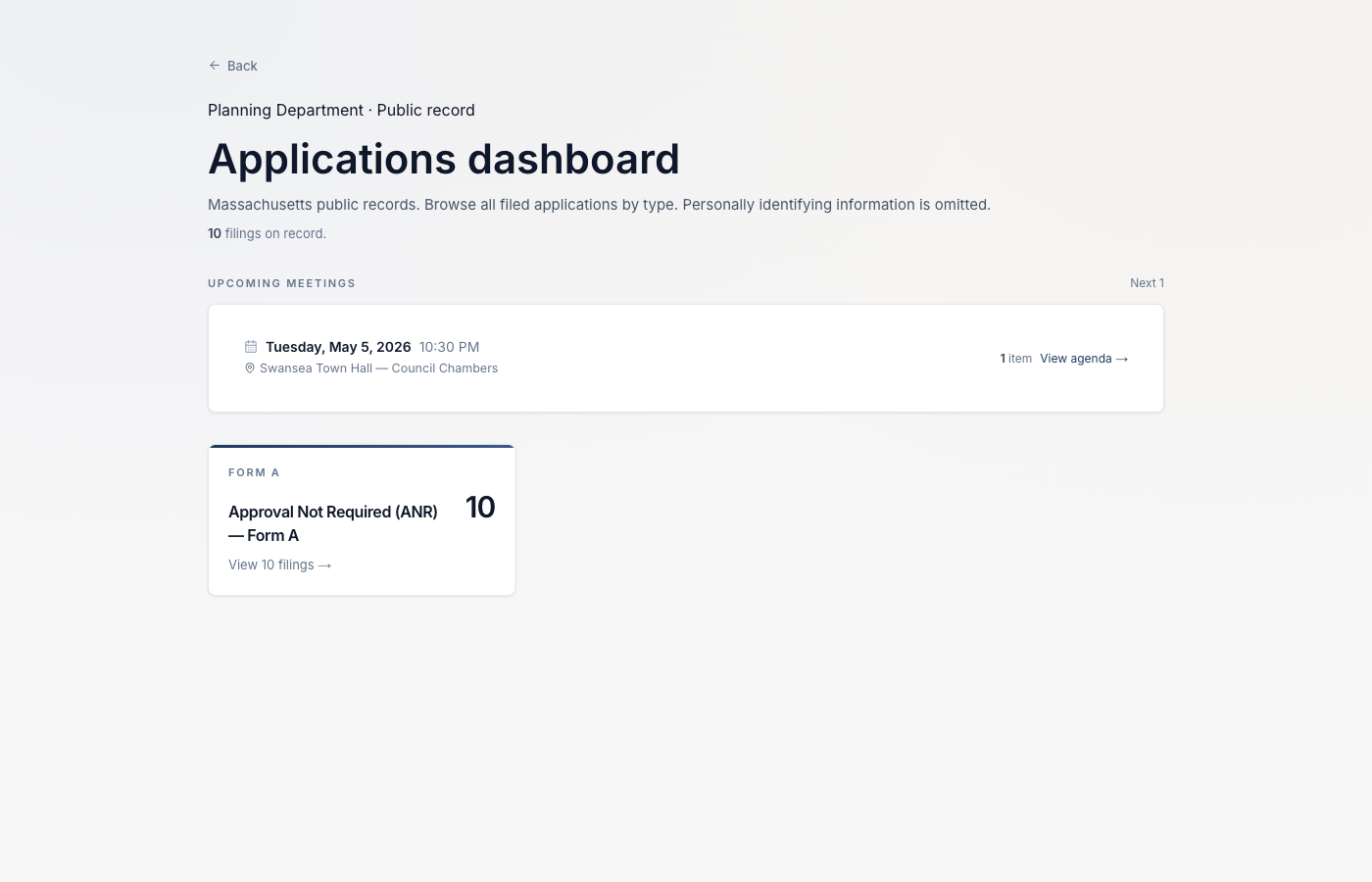
The public dashboard at maplanningsoftware.com/dashboard is a Massachusetts public records
view of all active applications. Anyone can see filings by type, upcoming Planning Board meetings,
and browse the agenda — no login required. Personally identifying information is omitted.
maplanningsoftware.com/dashboard
📰
Massachusetts public records
All filings are accessible to the public, consistent with M.G.L. public records requirements.
🗓️
Upcoming meetings shown
Next Planning Board meetings with date, location, and agenda item count visible to all.
🔒
Privacy protected
Applicant contact information is omitted from the public view — only project details are shown.
Step 1 of 7
Applicant submits the ANR application online
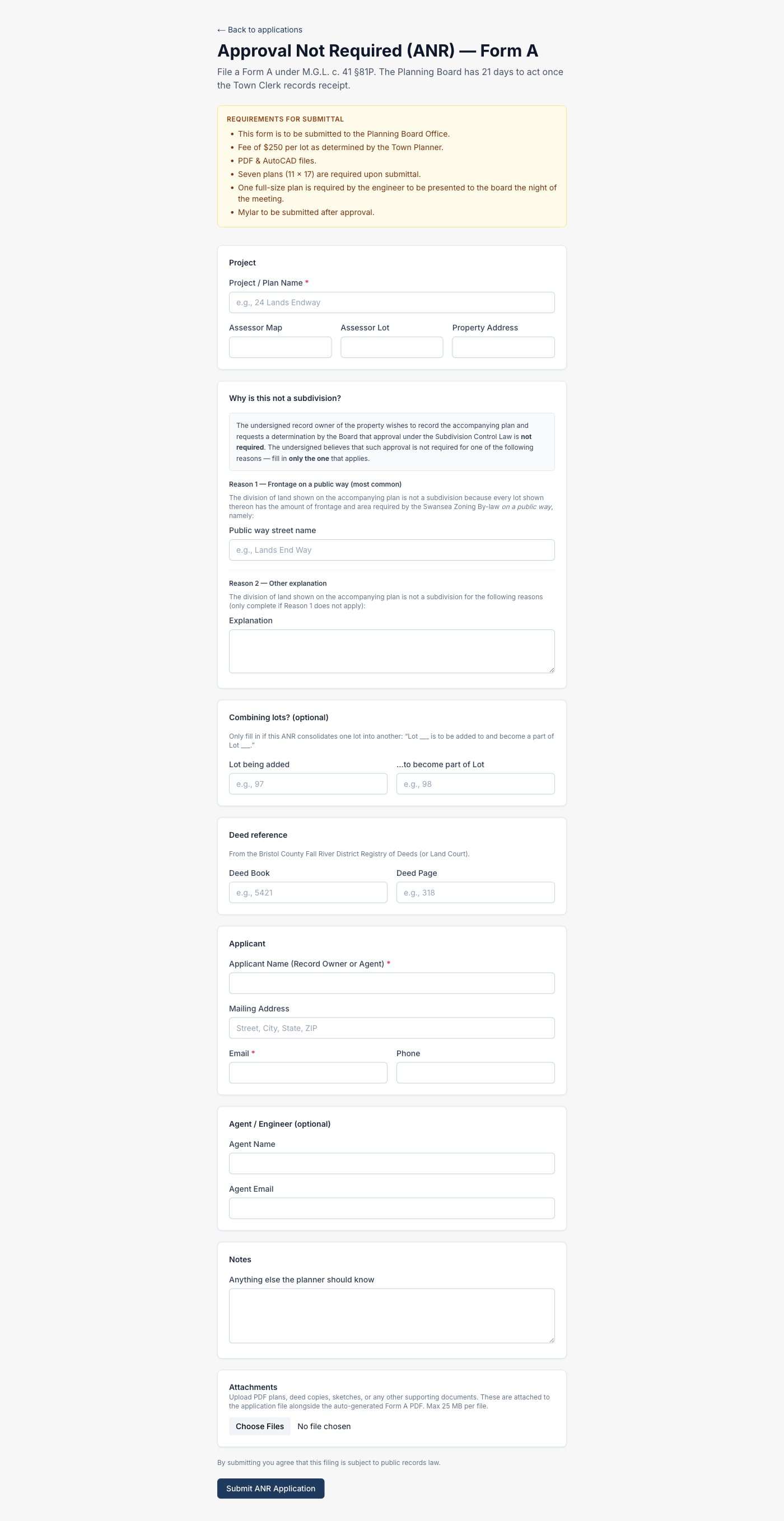
The applicant visits maplanningsoftware.com/apply/anr and fills out Form A digitally.
The form captures the project, legal basis (frontage or other reason), deed reference, applicant details,
and optional file attachments. On submission the system automatically generates the town's
official Form A PDF — pre-filled with every field from the digital form — and kicks off the entire workflow.
maplanningsoftware.com/apply/anr
📋
Requirements shown upfront
Fee amount, required documents, and plan specifications are listed before the form so applicants know exactly what to prepare.
🖨️
Official Form A auto-generated
On submit, the system populates the town's official ANR Form A PDF from the digital fields — no manual re-entry by staff.
⚡
Three actions fire instantly
PDF generation, payment request email to applicant, and Town Clerk intake email — all triggered automatically on submission.
Step 2 of 7
Staff sees the new case in the dashboard
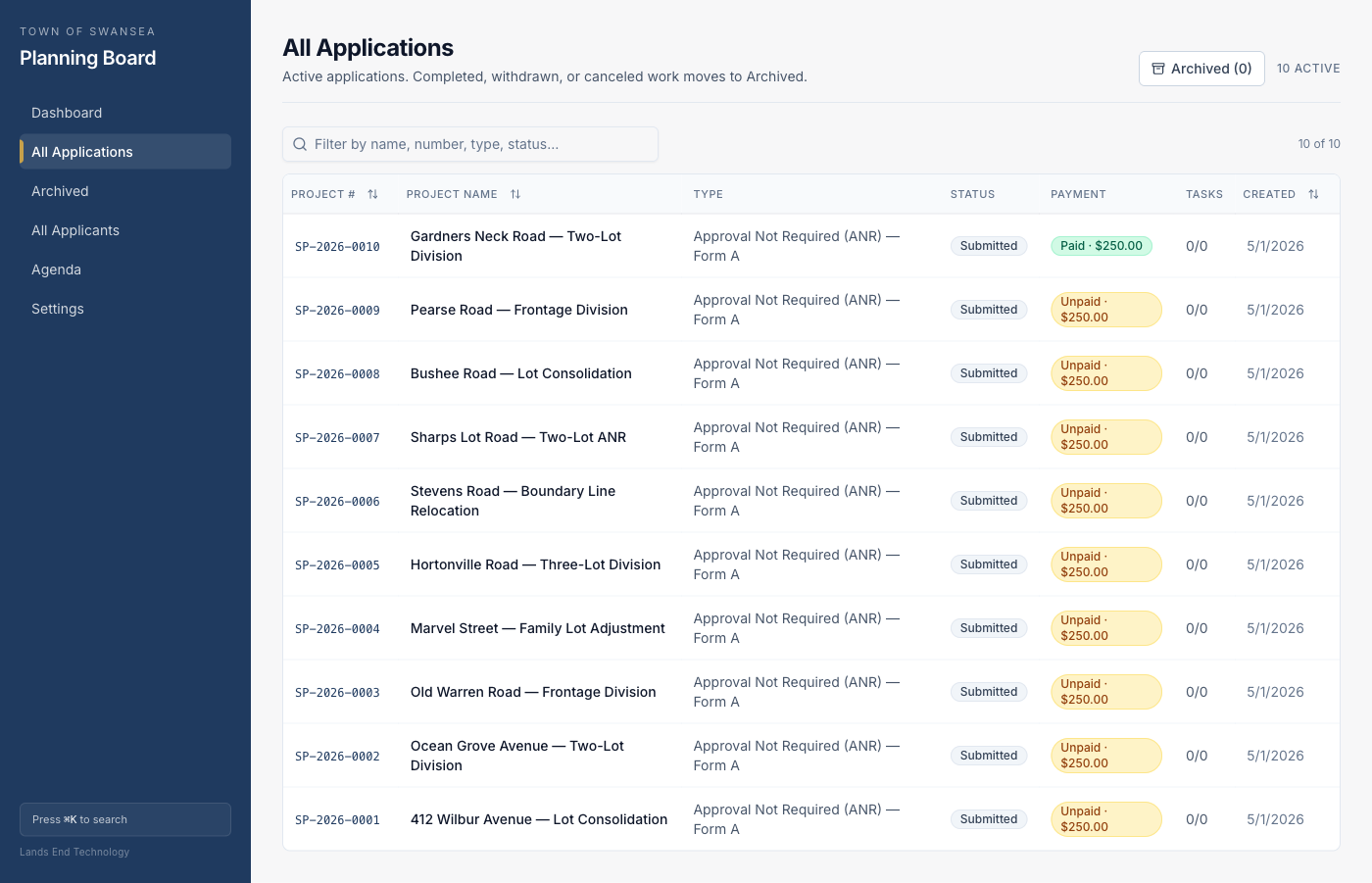
The moment the form is submitted, a new case appears in the staff portal with a project number,
payment status badge, and workflow step indicator. Staff can filter and sort all active applications.
maplanningsoftware.com/staff/cases
🔢
Auto-assigned project number
SP-YYYY-NNNN format, sequential, assigned on submission.
💳
Payment status visible
Paid / Unpaid badges on every row so staff can spot outstanding fees at a glance.
📅
Statutory deadlines tracked
21-day constructive-approval deadline calculated from submission and shown on the case.
Step 3 of 7
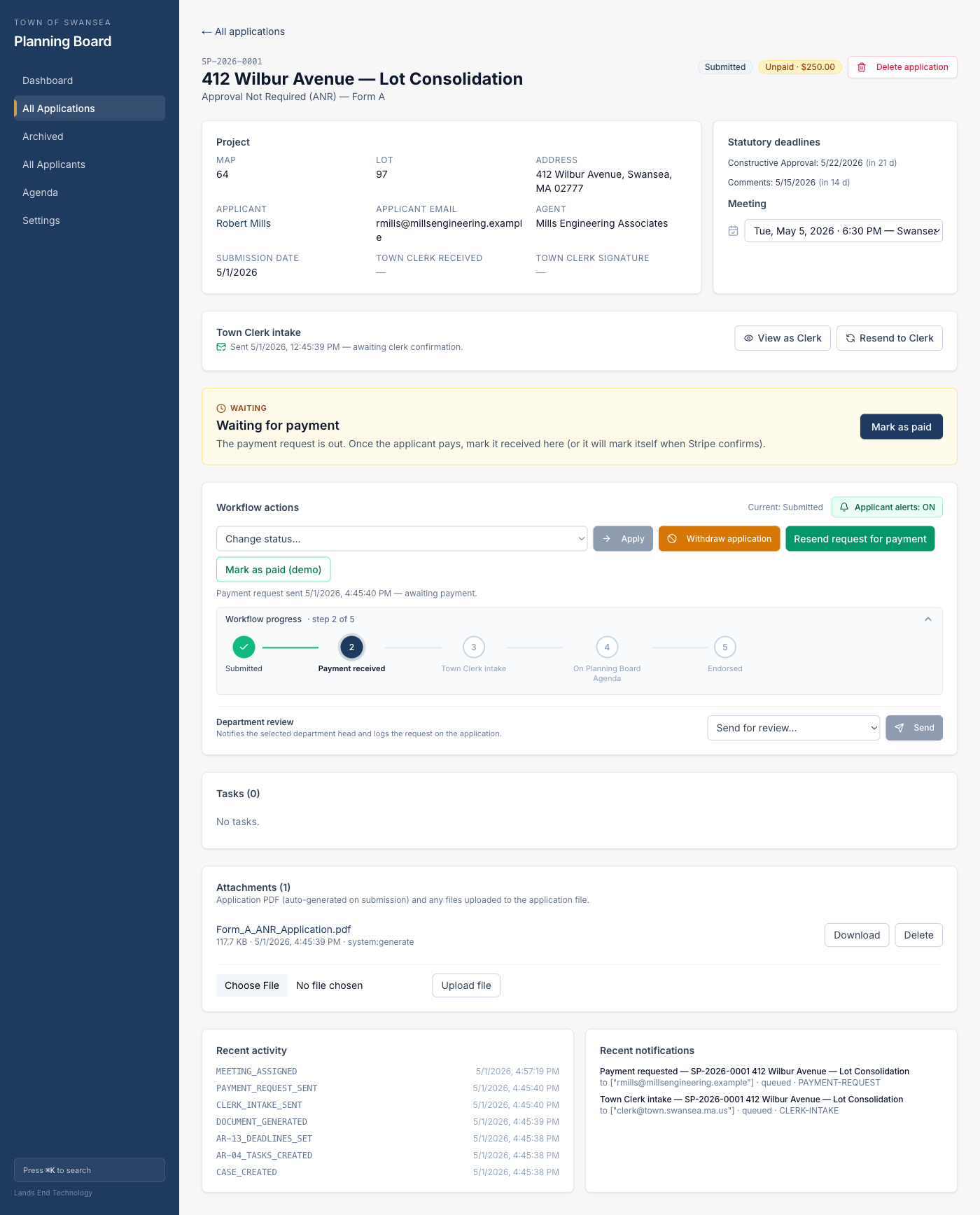
Payment request automatically emailed to the applicant
On submission the system emails the applicant a formatted payment request showing the project details
and fee due. Staff can also resend it manually from the case page. The case page shows a
"Waiting for payment" banner until payment is recorded.
maplanningsoftware.com/staff/cases/SP-2026-0001
📧
HTML payment email
Formatted card with project details, amount due ($250), and a "Contact Planning Office" button.
⏳
Waiting banner
Staff see an amber "Waiting for payment" banner with a one-click "Mark as paid" button.
🖨️
Official PDF sent to Clerk
Town Clerk's email includes a direct link to the auto-generated Form A PDF — the official town form, fully populated from the digital submission.
Step 4 of 7
Town Clerk confirms receipt via magic-link email
The Town Clerk receives a formatted email with the application details, a "Confirm receipt & timestamp"
button, and a direct PDF download link. Clicking the button opens a public intake page where the clerk
enters their name and confirms — no staff login required.
Planning Office
Town Clerk intake
A new application has been submitted to the Planning Office and requires your intake confirmation.
Confirming receipt stamps the date used to calculate the constructive-approval deadline.
Swansea Planning Board
🔗
Magic-link — no login
Token-secured URL in the email opens the intake page directly. Valid for 90 days.
🕐
Timestamps the deadline
The clerk's confirmation date starts the 21-day constructive-approval clock (M.G.L. c.41 §81P).
📄
PDF packet included
One-click PDF download of the auto-generated Form A application included in every email.
Step 5 of 7
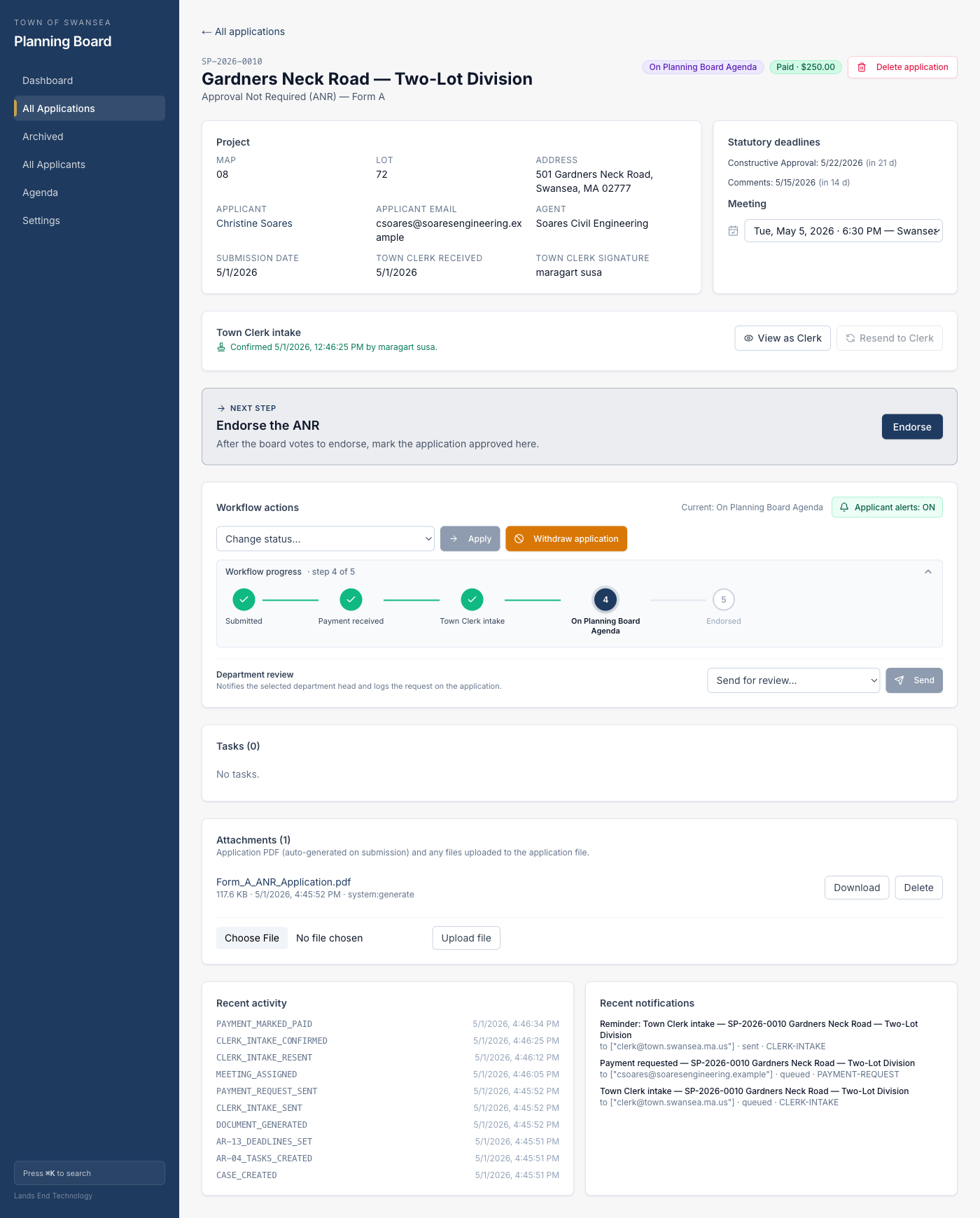
Case auto-advances to "On Planning Board Agenda"
Once both payment is recorded and the Town Clerk confirms receipt, the system automatically
assigns the case to the next upcoming Planning Board meeting and transitions it to
On Planning Board Agenda. No manual intervention required. The only remaining step is endorsement.
maplanningsoftware.com/staff/cases/SP-2026-0010
🤖
Fully automatic advance
Triggers on whichever condition is met last — payment or clerk confirmation — in either order.
📅
Auto-assigned to next meeting
Case is placed on the next scheduled Planning Board meeting automatically.
When a case transitions status, the applicant (and optionally their agent) automatically receives
a formatted status update email with their application details and a "Check application status"
button linking to the public lookup page.
Planning Office
Application status update
Christine Soares,
Your application "Gardners Neck Road — Two-Lot Division" (SP-2026-0010) has moved from "Submitted" to "On Planning Board Agenda".
If you have questions, please contact the Planning Office.
Swansea Planning Board
🔔
Opt-in per case
Staff can toggle applicant notifications on/off per case from the case page.
🔗
Public status lookup
Button links to maplanningsoftware.com/lookup where anyone can check a case by project number.
👤
Agent CC'd
If an agent/engineer was listed on the application, they're CC'd on every status email.
Applicant Self-Service
Applicants can check their status in real time
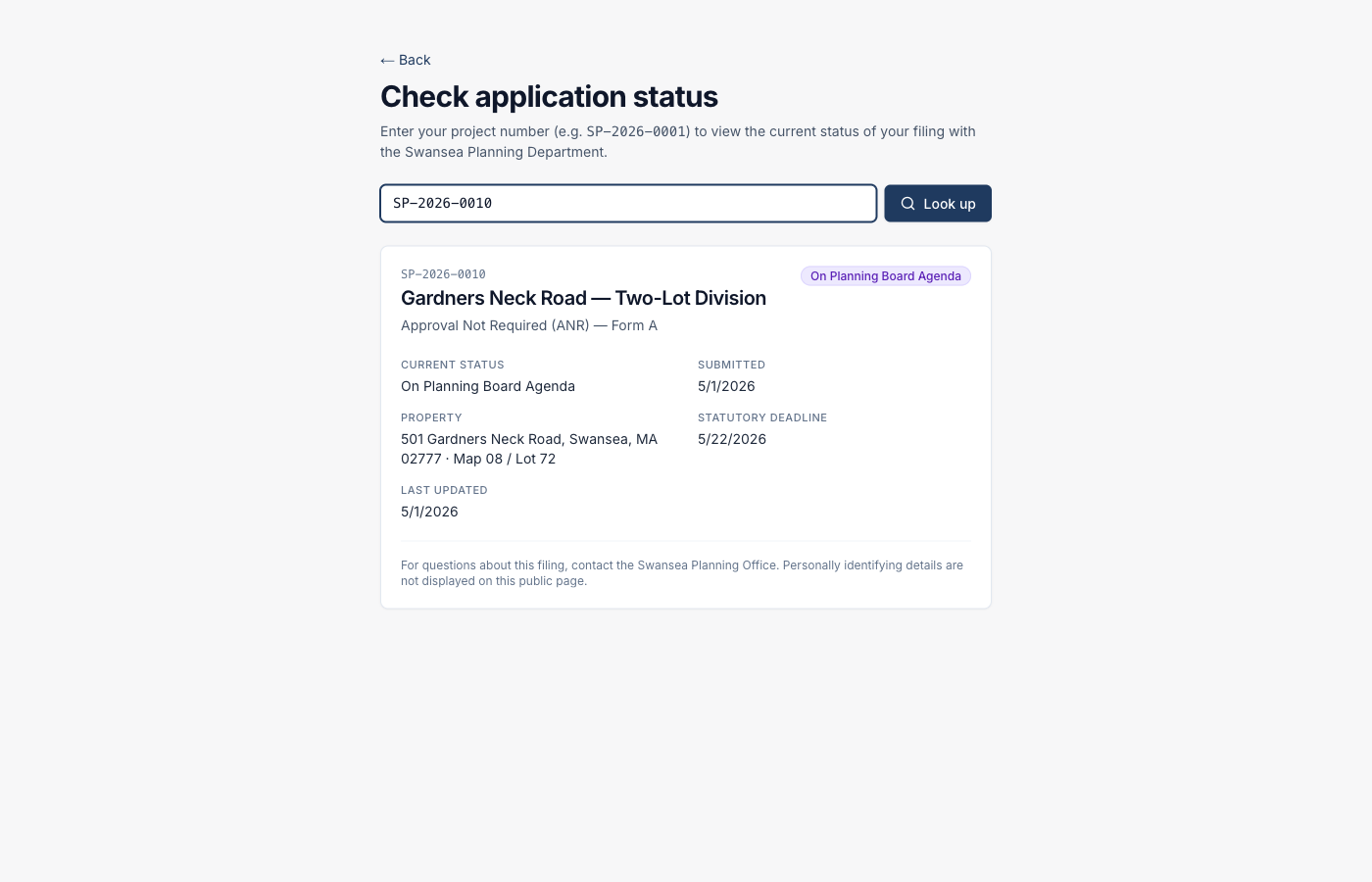
At any point in the process, an applicant can visit maplanningsoftware.com/lookup
and enter their project number to see the current status, submission date, property details,
and statutory deadline — updated in real time as staff advance the case. No account or login needed.
The "Check application status" button in every notification email links directly here.
maplanningsoftware.com/lookup?p=SP-2026-0010
🔍
Search by project number
Applicants enter their SP-YYYY-NNNN number from their confirmation email to instantly pull up their case.
⚖️
Statutory deadline shown
The 21-day constructive-approval deadline is displayed so applicants know the legal timeframe.
📬
Linked from every email
Every status notification email includes a "Check application status" button that lands here directly.
Step 7 of 7
Board endorses — the only manual step
After the Planning Board votes to endorse the ANR at the meeting, staff click the single
Endorse button on the case page. The application moves to Approved and the
case is archived. This is the only staff action in the entire workflow that isn't automated.
→ NEXT STEP
Endorse the ANR
After the board votes to endorse, mark the application approved here.
✓ Done
Submitted
→
✓ Done
Payment received
→
✓ Done
Town Clerk intake
→
✓ Done
On Planning Board Agenda
→
Current
Endorsed
🗳️
One click to close
Single "Endorse" button marks the application approved and archives the case.
📋
Full audit trail
Every action, email, and status change is logged in the Recent Activity feed on the case page.
📁
Moves to Archived
Approved cases move to the Archived view, keeping the active queue clean.
Summary
What the system handles automatically
From submission to agenda, the system drives the entire workflow. The Planning Office's only manual
steps are marking payment received and endorsing after the vote.
1
Manual step (staff)
Endorse the ANR after the board votes. Everything else is automatic.
3
Auto-emails on submit
Application PDF generated, payment request to applicant, and Town Clerk intake packet — all sent immediately.
21
Day deadline tracked
Constructive-approval deadline calculated and displayed on every ANR case per M.G.L. c.41 §81P.
0
Logins for the Clerk
Town Clerk confirms receipt via a magic-link in the email — no account or password required.